
Navigating AstraERP
A five-minute tour of the shapes you'll meet on every screen.
After sign-in
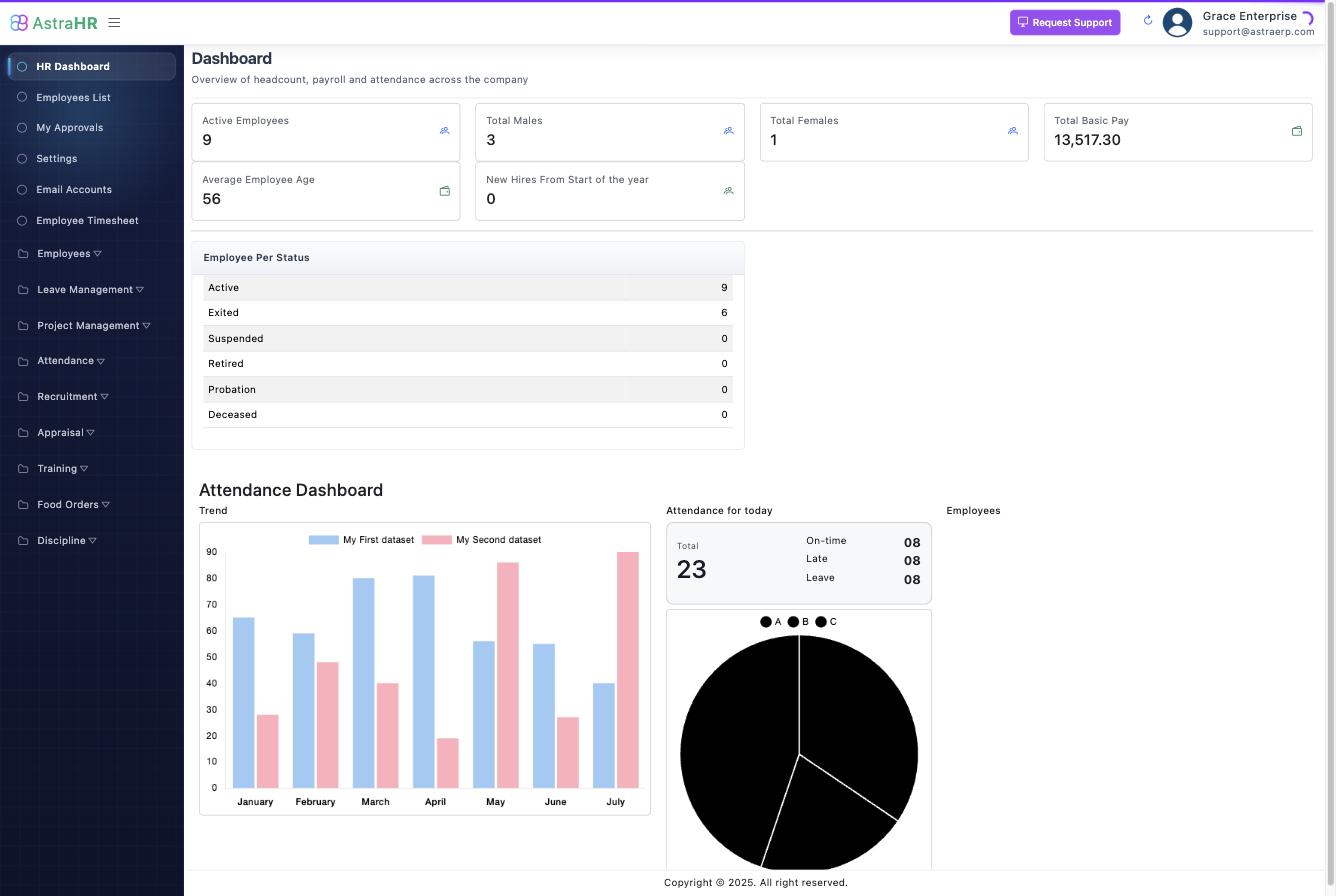
You land in your default module's dashboard (for many users that's Inventory or HR). Switch modules from the menu; each module opens its own workspace.
Module workspaces
Each module opens with its own left sidebar. The entries are grouped by task (in HR: Employees, Discipline, Leave Management, Attendance…) and reflect your grants — two users can see different menus on the same screen.
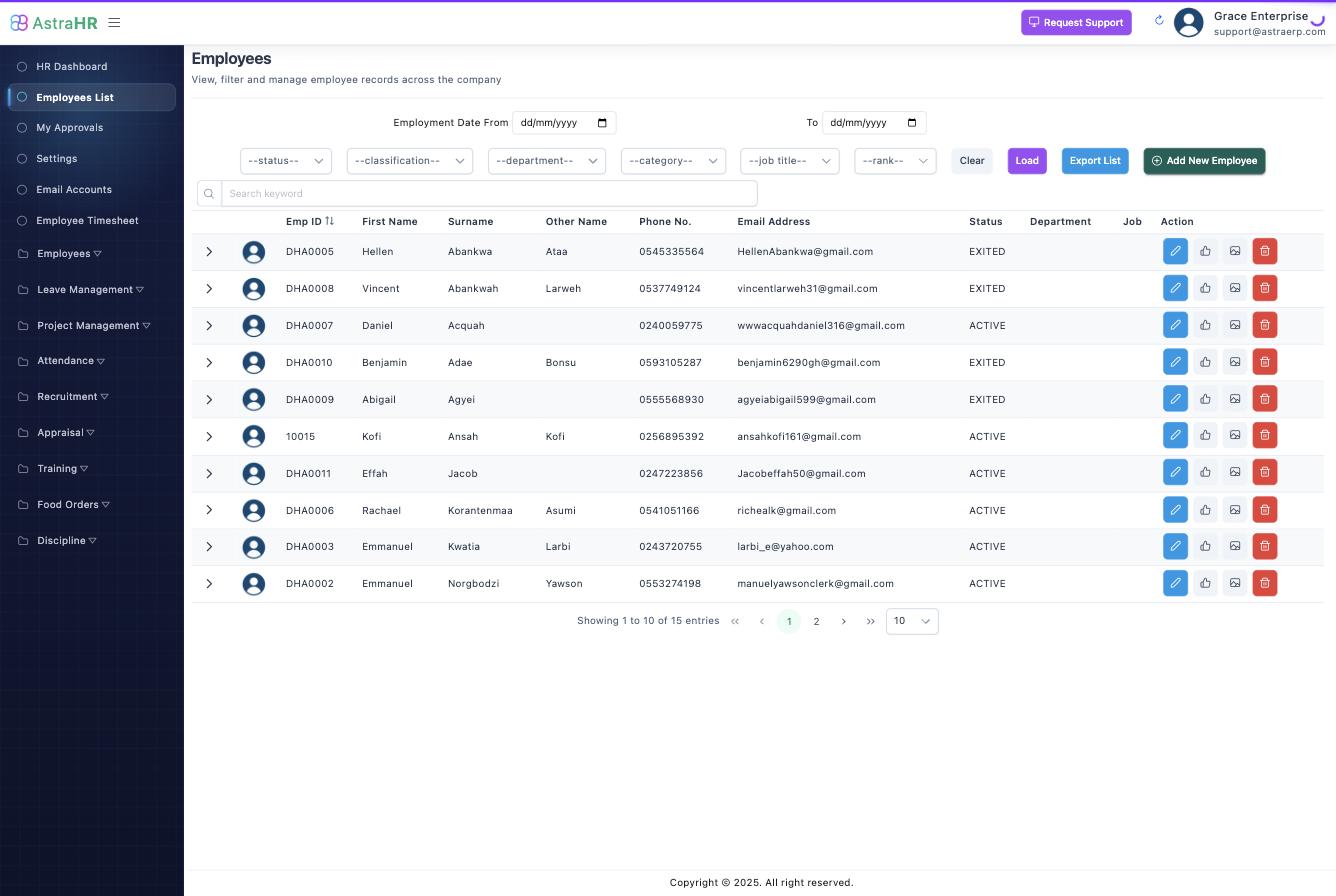
Collapsible groups expand in place; the highlighted entry is where you are.
The anatomy of a page
Most working screens share one layout:
- Page header — the title and description, with the page's actions on the right (New, Export, Report…).
- Filters — dropdowns and date ranges; lists refresh as you change them. Date filters use the shared From/To + quick periods selector (Today, This Week, This Month…).
- The list — click a row to open the record; some pages open a detail panel beside the list instead, and some offer a view switcher (list ↔ board).
Forms and dialogs
Creating and editing usually happens in a dialog over the list: fill the fields, Save — the list refreshes in place. Required fields are marked; date fields use the calendar picker; searchable dropdowns filter as you type.
Things worth knowing early
- Working within a company: everything you see belongs to the company you're switched into (user menu → switch company).
- The bell — in-app notifications (approvals, mentions, events) arrive top-right.
- Exports — most lists export to Excel from the page header.
- Nothing hard-deletes silently — records are typically deactivated or cancelled with a trail; the few true deletes ask first.