
Getting Started with AstraERP
AstraERP runs your whole business from one place — inventory & supply chain, sales & POS, accounting & banking, HR & payroll, CRM, and fleet — with a web app for the back office, an employee self-service portal, and a mobile app.
This guide takes you from signing in to understanding how the pieces fit, so the module guides make sense.
What you need
| Recommended | |
|---|---|
| Browser | Google Chrome (latest). Firefox, Safari and Edge also work |
| Connection | 10 Mbps or better |
| Screen | 1366 × 768 or higher |
Signing in
Open your AstraERP address and sign in with your email or phone number and password.
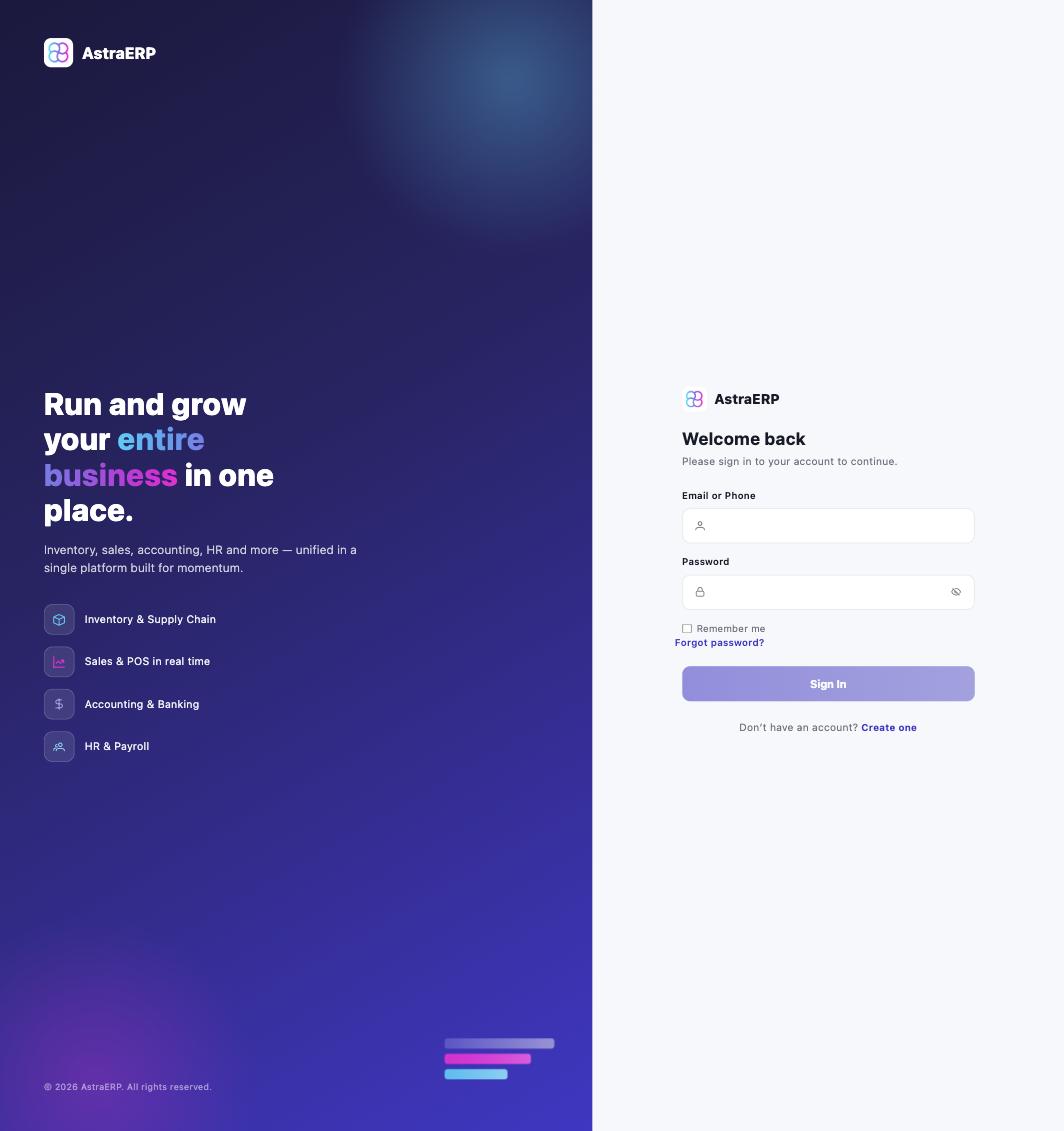
- Forgot password? starts a reset by email/OTP.
- New accounts are created by your administrator (or Create one where self-registration is enabled for your organisation).
- First sign-in on a temporary password takes you straight to a change-password screen — nothing else works until you set your own.
Companies and switching
Everything in AstraERP belongs to a company. A user account can be attached to more than one company (an accountant serving several businesses, a group with subsidiaries). After sign-in you act within one company at a time; switch from the user menu — every list, report and document you see belongs to the company you're switched into.
How the app is laid out
- Home shows the modules you have access to; each module (HR, Inventory, Account, CRM, Payroll, Fleet, POS) opens its own workspace with a sidebar menu on the left.
- The sidebar shows only the pages you've been granted (see permissions below), grouped the way work happens — e.g. HR groups Employees, Discipline, Leave, Attendance.
- Most pages follow one pattern: a header (title, description, action buttons on the right), filters, and a list; clicking a row opens the record or a detail panel.
See Navigating AstraERP for a screen-by-screen tour.
Users, pages and permissions
Access is per page, per user, per company:
- Every screen in AstraERP is a registered page under its module.
- An administrator grants a user the pages they need (and, where a page has them, individual actions on that page).
- The user's menu is built from those grants — no grant, no menu entry.
So "give Ama access to Leave but not Payroll" is exactly what the security screens do. Grants also serve as the rollout switch for new features: a new module appears to nobody until its pages are granted.
Locations
Users are assigned to one or more locations (branch, office, warehouse). Stock, sales and several HR features are location-aware; if you see "no location assigned" after sign-in, an administrator needs to assign you one.
First-day checklist for a new company
- Company profile — details, logo, letterhead (Config → Letterhead; letters and exports print on it).
- Locations — create your branches/warehouses.
- Users — add your team, grant pages, assign locations.
- Module setup — each module has its own setup screens (Chart of accounts, Products & stock, HR employees, Discipline catalogue, Payroll items). The module guides start with their setup page.
- Templates — email/SMS message templates and document numbering are under Settings.
Getting help
- These docs — use the search box, it covers every page.
- Support: support@astraerp.com · call/WhatsApp +233 (0)244-896-544 / +233 (0)256-290-530.