
Tutorial: Running a Minor Case
The everyday scenario, end to end: an employee has been persistently late, a counselling note six weeks ago didn't change anything, and their manager wants a written warning. Target time on task: under five minutes, spread across the response window.
What you'll touch: HR → Discipline → Cases.
Step 1 — Report the incident
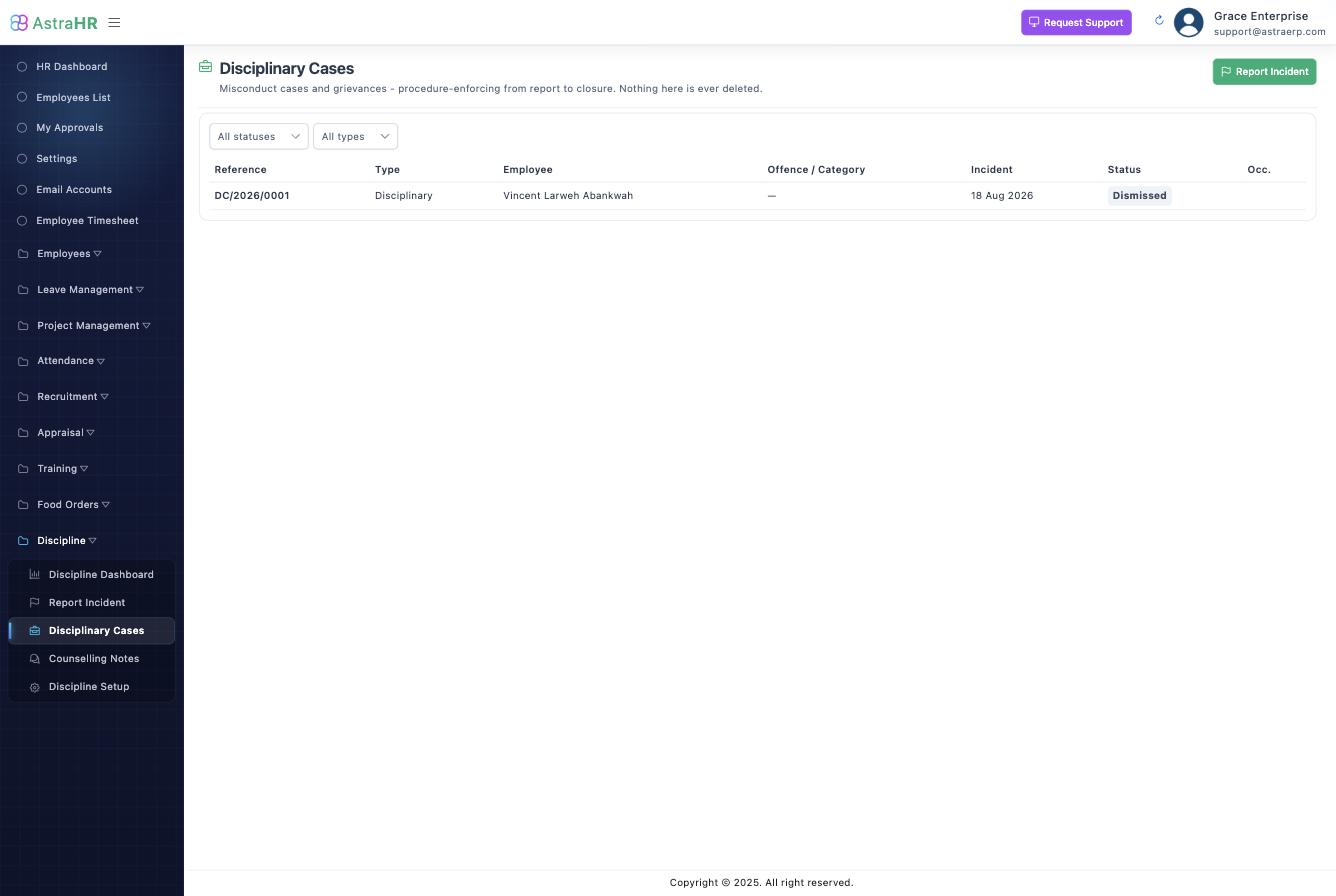
- Open Cases and click Report Incident.
- Type: Disciplinary. Pick the respondent (the employee concerned) and optionally reported by.
- Incident date, time, location, and a plain-language summary of what happened.
- Create Case. The case is minted with its immutable reference (e.g.
DC/2026/0012) and opens in the workspace at Reported.
Anonymous reports
Tick Anonymous report to omit the reporter. The case then cannot pass triage until a named HR validator is recorded — an anonymous accusation alone never advances.
Auto-raised Drafts (from the attendance triggers) start one step earlier: review the attached system evidence, then Advance to Reported or Dismiss Draft.
Step 2 — Take under review and triage
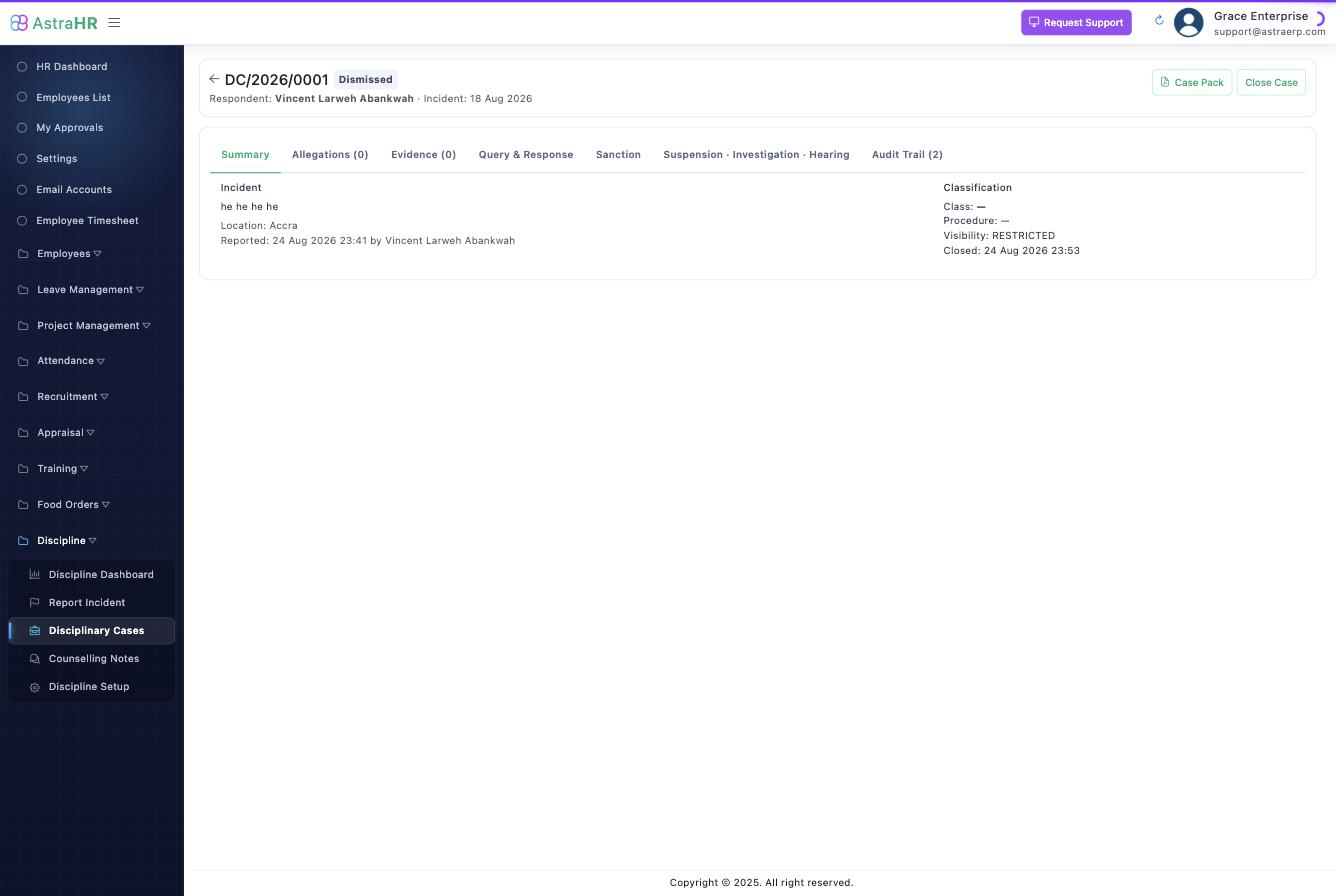
- Click Take Under Review. (Gate: respondent identified; anonymous reports validated.)
- Click Triage and pick the offence — e.g. ATT-01 Persistent lateness. Only offences in force on the incident date are accepted.
Triage does four things automatically, all visible on the case header:
- snapshots the class (Minor) and the procedure the case will follow;
- counts the respondent's prior upheld, unspent occurrences of this offence — say this is occurrence 2;
- reads the offence's sanction ladder → recommendation: Written Warning;
- runs the escalation rules — a matching rule can raise the recommendation (it's still only a recommendation).
Step 3 — Allegations and evidence
- Allegations tab → Add Allegation: the specific factual assertion — "Reported at 09:40 on 18 Aug, 09:55 on 19 Aug and 10:05 on 21 Aug against an 08:00 start." One case can carry several; each will get its own finding.
- Evidence tab → Add Evidence: attendance records, statements, CCTV… When you want the employee to see an item, click Disclose — the timestamp is your proof they saw what the decision-maker saw.
The query is blocked until at least one allegation exists (and evidence, where the offence demands it).
Step 4 — Issue the query
Click Issue Query. The text is pre-drafted from the offence definition — edit it, then Issue. The system:
- stamps the response deadline (parameters default: 3 working days — weekends and holidays skipped);
- serves the query to the employee's portal and (per the notification matrix) emails them;
- moves the case to Query Issued.
When the employee opens it on the portal, the opened timestamp lands on the case — service is proven.
Step 5 — The response
Three ways this resolves:
| What happens | What you do | Case moves on? |
|---|---|---|
| Employee responds on the portal | Nothing — it lands on the case | Yes → Response Received |
| Employee hands you paper / responds verbally | Record Response, choosing the mode. A verbal transcription is held until the employee verifies it on the portal — otherwise it's HR's account of their defence | After verification |
| Deadline passes silently | Minute Lapsed Deadline — recorded with a timestamp and explicitly not treated as an admission | Yes |
Step 6 — Decide
Click Record Decision (a minor offence may skip the hearing; a hearing-mandatory class cannot — the button will tell you). For every allegation, record a finding — Upheld / Not upheld / Partially upheld / Withdrawn / No finding — plus a one-line rationale. No partially adjudicated cases: the sanction stays locked until all findings are in.
Nothing upheld? Close (No Sanction) — the case and its trail remain forever, but no record counts against the employee.
Step 7 — Sanction
Click Issue Sanction. The dialog shows the recommendation for occurrence 2 (Written Warning), pre-selected.
- Take the recommendation → click Issue Sanction.
- Depart from it → the system demands a written justification, and refuses anything outside the ladder's floor/ceiling for this occurrence.
On issue: the letter renders from the sanction type's template (snapshotted on the case exactly as served), validity is stamped (12 months → the spent date), the case moves through Sanction Issued into Appeal Window, the employee is notified, and any payroll effect raises its deduction instruction automatically.
The employee acknowledges on the portal — or refuses, and the refusal itself is recorded. Either way the record stands.
Step 8 — Appeal window, then close
The employee has the appeal window (default 7 working days, shown on the case) to appeal from the portal — see Appeals. When the window elapses (or an appeal is determined, or the employee waives in writing), click Close Case. Closing:
- auto-lifts any suspension,
- starts the validity clock — after 12 months the nightly job marks the warning spent: still on the trail, no longer counted.
What just got built, without you thinking about it
Open the Audit Trail tab: creation, review, triage with occurrence and recommendation, every allegation and disclosure, the query with its deadline, the response (or minuted lapse), each finding, the sanction with any override justification, the acknowledgement, closure — each with actor and timestamp. Click Case Pack and that record is one printable document. That is the point of the module.